
Microsoft has defined certain limits for Outlook data file (mailbox) size for different Outlook versions. In Outlook 2010, 2013, and later versions, there is a preconfigured limit of 50 GB for OST files. In Outlook 2003 and 2007, the mailbox/OST data file limit is set to 20 GB. The default data file size limit is 2 GB in older Outlook (before 2003) versions.
When your Outlook reaches the defined maximum limit for mailbox/data file, you will start receiving an error message, saying ‘Your mailbox is full, you may not be able to send or receive items‘. As clear from the message, you may fail to send and receive new emails and also face performance issues. So, you need to reduce the mailbox size to fix the issue. In this article, we will be explaining different methods to reduce the mailbox/Outlook data file size and resolve the Outlook storage full error.
Ways to Fix Outlook Storage Full Error
If your Outlook storage is full, then you need to reduce your mailbox (data file) size. Here are some ways to reduce the Outlook mailbox or data file size.
1 – Empty Deleted Items and Junk Emails Folders
In Outlook, the deleted items are moved to the Deleted Items or Trash folder. However, these deleted items are not removed permanently until you empty these folders. If you do not empty these folders, then they can consume a lot of storage space. You can empty the Deleted Items folder to reduce the mailbox size. For this, just go to the Deleted Items folder and delete all the items.
You can also configure Outlook to automatically empty the Deleted Items folder. Follow the steps given below:
- In Outlook, go to ‘File‘ and click on ‘Options‘.
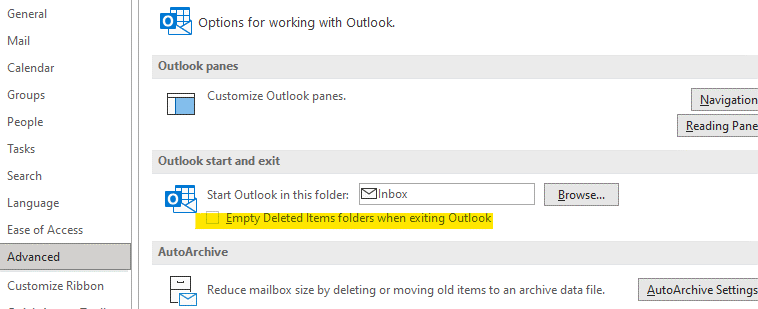
- In the Options window, select ‘Advanced‘ from the left-hand sidebar. On the right-hand side of the window, under ‘Outlook start and exit‘, checkmark ‘Empty the Deleted Items folders when exiting Outlook‘.
You can also delete items from Junk Email folder to further reduce the mailbox size.
2 – Delete Emails with Large Attachments
If you receive a lot of emails with large attachments, then these can consume a lot of mailbox space. So, you can delete such emails to clear space and reduce mailbox size in Outlook. Follow the given steps:
- Open your Outlook.
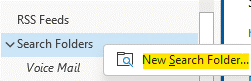
- Navigate to the ‘Folder‘ list, select ‘Search Folder’, and then click on ‘New Search Folder‘.
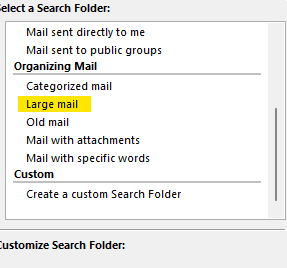
- From the list, under ‘Organizing Mail’, select ‘Large mail‘.
- Under ‘Customize Search Folder‘, click on ‘Choose‘.
- Now, specify the size in the ‘Show mail greater than‘ box, and then click ‘OK‘.
- When you click ‘OK‘ again, a folder is created, named ‘Large Than [Size]‘ under ‘Search Folder‘.
Now, you can open the ‘Large Than [Size]‘ folder and delete the emails which are not important.
3 – Save Attachments at Another Location or Cloud
If you don’t want to delete emails with large attachments, then you can save attachments at another location on your system or on the cloud, like OneDrive. To save attachments at another location, right-click on the attachment and then select ‘Save As‘. Choose the location on your system where you want to save the attachment. After saving the attachments, you can delete them from Outlook. This will help in reducing the mailbox size.
4 – Use Clean Up Tool
You can also use the Clean Up Tool in Outlook to reduce the size of mailbox. Follow the steps given below to use the Clean Up tool:
- Open Outlook on your system.
- Navigate to ‘File‘ and click on ‘Info‘.
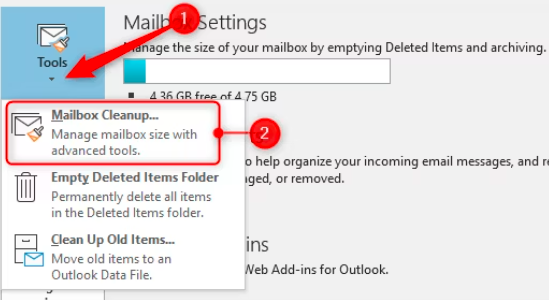
- Now, select the ‘Clean Up Tools‘ option and then click on ‘Mailbox Cleanup‘.
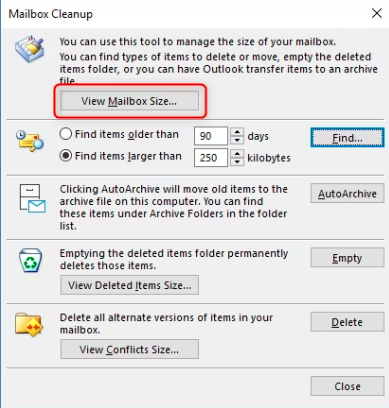
- In the ‘Mailbox Cleanup‘ window, click on ‘View Mailbox Size‘.
- Now, choose folders with their specification to delete from or all, like ‘Find items older than’, ‘Find items larger than’, ‘View Deleted items size’, ‘Empty Deleted Items‘ folder, ‘Empty Conflicts’ or ‘View Conflict Size‘. Delete or empty the folder or all folders. This will help reduce the mailbox size in Outlook.
5 – Archive Older Items
To reduce the Outlook mailbox size, you can archive older Outlook items to a separate Outlook data file (.pst). You can follow the steps given below to manually archive older items in Outlook:
- Open your Outlook application.
- Navigate to ‘File‘, select ‘Info‘, and then click on ‘Tools‘.
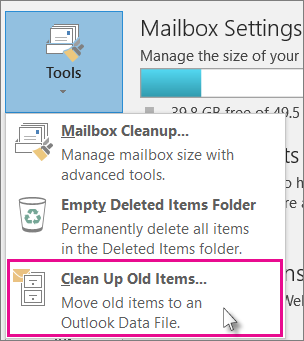
- From the dropdown, select ‘Clean Up Old Items‘.
- In the ‘Archive‘ window, select the radio button – ‘Archive this folder and all subfolders‘ option. Then, choose the folder that you want to archive.
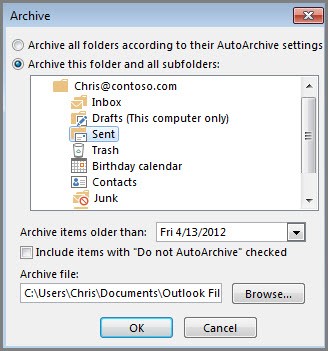
- In the ‘Archive items older than‘ field, enter a date (to archive mailbox items older than the mentioned date).
- Checkmark the ‘Include items with ‘Do not AutoArchive‘ box, if you want to archive individual items which are not included in auto archiving.
- Now, click on the ‘Browse‘ button to choose the location where you want to save the archived (.pst) file and click ‘OK‘.
This will move the selected mailbox items to a separate PST file, thus reducing the mailbox size. Similarly, you can create multiple PST files to further reduce the mailbox size.
Conclusion
In Outlook, there is a specified limit for mailbox storage. If Outlook reaches this storage limit, you may begin to receive the Outlook storage full error. To fix this error, you need to reduce your mailbox size. You can follow the methods discussed above to reduce the size of your Outlook mailbox/data file. Alternatively, you can use an OST to PST converter software, such as Stellar Converter for OST. The software allows you to convert large-sized OST file into PST file format in a few simple clicks. It can also split the converted PST into multiple smaller files. It can also save the large attachments separately in a folder. This can help you to reduce the OST file size. This software can also extract data from inaccessible or orphaned OST file and save it in PST and various other formats.
Next step: If full mailboxes keep coming back, the fix is usually in how Microsoft 365 is set up and looked after. See how Rizonetech handles Microsoft 365 management for small businesses.
Published 12 November 2024. Last updated 27 September 2026.